- AHH Server time:
11:47(UTC), Saturday
June 13, 2026





This Website works best with  Chrome Web Browser
Please Select a topic:
Shipping &
Handling Rates
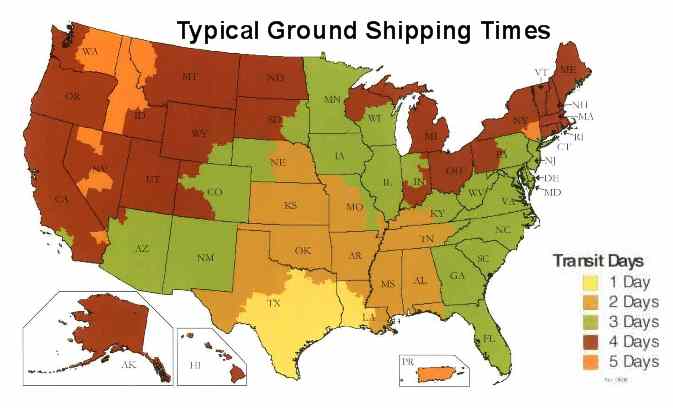
Ground Shipping Times
Payment Information
General Business Policy
Non Disclosure
Agreements & Special Consultation Contracts
International Orders
Information Privacy Policy
Helping
the Environment
Miscellaneous Business Policy
Children's Product Safety CPSIA
Engineering Services & Patent Law Advise - We do not provide either.
Certificates of Conformance and Product Documentation
Updated: Oct 14, 2020 - This Website is Active and taking orders

Children's Product
Safety
NOTE: Most of the metal hardware, mesh, vinyl, or fabrics wider than twelve
inches that we offer for sale on our website are NOT intended for use in the
manufacture of Children's Products & Toys as per:
CPSIA 110-314; Aug 14, 2008,
unless specifically noted on the product page. We provide certification of CPSIA
compliance to customers upon purchase of our CPSIA complaint materials.
At additional cost (advance payment required) and with minimum order requirements
we can obtain materials similar to most of those sold on our website; that are
fully CPSIA certified for use in Children's Products and toys. Please e-mail
us your requirements.
Shipping and Handling
Rates
Are based on total shipping weight of your order. Prices for shipping &
Handling are calculated and displayed as individual items are added to the
Shopping Cart.
Next Day Air & Standard Handling
Next Day Delivery or WE pay the Shipping *See details below Oversize & Overweight
packages may incur additional charges. Excess shipping charges may be refunded
for smaller, lower weight packages if the actual shipping cost is exceeded by
$5.00 or more.
To guarantee next business day delivery Place your order by Phone with one of
our sales associates, who will confirm that the items you order are in stock
for immediate shipment. Orders must be placed on regular business days (not
holidays) between 9:30 am and 12:00 noon Central time. Saturday Delivery may
incur extra charges and may not be available in all areas. If you are billed
for Next Day Air shipping and you do not receive your order the next business
day; your shipping fees will be refunded. Refund of original Next Day shipping
charges is the total extent of this guarantee, no other warranty is expressed
or implied; the extent of our liability for any and all customer damages incurred
by late delivery of a customer's order for any reason(s) shall not exceed the
monetary value of the original shipping charges.
U.S. Postal Service (name also abbreviated as: U.S. Mail, or USPS)
USPS shipping is available. our rates for USPS are based on the total shipping
weight of your order. Orders being shipped within the Continental USA and weighing
less than 12 ounces will be shipped via USPS Priority Mail, Orders greater than
12 ounces, or being shipped outside of the Continental USA, will be shipped
using whatever USPS service is offered based on the package size, weight and
shipping destination. If multiple USPS services are available for a particular
package / destination we choose a service at our discretion.
NOTE: We reserve the right: At our discretion and convenience to choose
one or more of the following delivery companies' equivalent shipping services
to ship your order If special circumstances arise: UPS, U.S. Postal Service,
FedEx, DHL
4/24/2020 Note: In keeping with our company tradition of
serving the small craftsperson, American Home & Habitat imposes no minimum
order on purchases of stock items and hardware. However, due to the increase
of volume of small orders and the escalating costs associated with picking,
inspecting, packing and shipping small orders, we will be imposing a $10
handling fee on orders shipped via USPS to the Continental United States,
that have a shipping weight of under one pound (0.45 kg). To avoid paying
this $10 handling fee, simply place an order that is greater than one pound
(0.45 kg). For your convenience, shipping weights for all of our products
can be found on the Info & Discounts tab of each product's web page. Thank
You for your understanding.

Additional shipping charges or customer initiated arrangements may apply
if customers wish to select a specific carrier or a carrier not
listed above.
Payment Information
We Accept all major Credit Cards: Visa, Mastercard, Discover, American Express,
and IMPAC Military Credit Card

We also accept Checks & Money Orders by Regular US Mail. To pay by Check
or Money Order Just click on "print order to mail", under ways to
order, on the shopping cart page, and mail the printed form with your payment.
For quickest turn-around times, place your order online, with our Automated
Online System With No service charge 24 hours a day, 7 days a week.
General Business Policy
As an independent online retailer, we maintain our own online shopping platform
based solely in the state of Texas, so we are able to pass these savings onto
our customers.
No Sales Tax on orders shipped outside of the
state of Texas!
Shipping
Most orders ship within 48 hours, All Orders ship within 14 days unless otherwise
noted. We cannot be responsible for customer time restraints, late ordering
or carrier delivery time. Tracking numbers will only be provided via e-mail.
Address Corrections during package transit are not available, please enter the
correct shipping address when placing your order.
Package Tracking & claims of missing packages.
In most cases, using major shipping services and common carriers; tracking information
for packages and freight shipments is not available past 90 days from date of
shipping. Therefore we will not accept any claims of missing packages or shipments
past 90 days from the date the order was placed with us.
Refund & Exchange Policy
There are absolutely no returns on samples, swatch books, or catalogs!
You must first obtain a Return Goods Authorization number Prior to returning
or exchanging any merchandise. Fill out this RGA Request form to obtain an RGA
Number (Click here to go to the form page)
No package will be accepted without RGA approval number clearly printed on the
outside of the package.
When submitted, your request is sent to our returns department for approval.
When approved, you will be sent an email with a return goods authorization number.
If your return request is denied for any reason, you will be notified as to
the reason and how to obtain further assistance.
Please do not return merchandise without first obtaining a Return Goods Authorization
Number.
Merchandise returned without proper authorization will be refused or disposed
of without issuing credit or exchange. Absolutely No Returns or Exchanges will
be accepted on any merchandise after 30 days from date of delivery. (Except
for Tool Rentals)
Please Note: Through our sample program we offer samples of all Fabric/Material &
Webbing that we sell; therefore the customer is able to evaluate the suitability
of these items for their particular needs prior to purchase. Accordingly, there
is no refund or exchange for Fabric, Webbing or other items (except hardware)
unless through OUR mistake, we sent you the wrong type, color, variety, etc.
All unused, unaltered Hardware may be refunded or exchanged. Shipping charges
are not refundable. Hardware and merchandise sent due to our mistake is refundable
within 30 days of the order date. No refunds will be issued after the 31st day
of order date. Restocking fees of up to 25% may apply on all returned merchandise,
higher restocking fees may apply if the merchandise has been cut or modified
in any way. Returned grommet kits larger than size 5, and bench mounted grommet
setting presses and dies will be charged a $50 restocking fee which is the same
as the rental fee charged on these items. Please allow up to 3 weeks to process
a refund. Customer is responsible for return postage unless the refund or exchange
is due to OUR mistake.
Cancellation of Unshipped Orders
Cancellation of unshipped orders may incur up to a 25% restocking fee, based
on the total order amount. If the order has already been shipped see our refund &
exchange policy.
Customer Pickup:
Customer Pickup at our Sealy, Texas
Manufacturing and Warehouse Facility is available for customers in the
Extended Houston Metropolitan area including Sealy / Austin County and
adjoining counties only. These orders must be placed by phone and paid by
credit card, there is a minimum order of $500 for all customer pickups. At
the time of ordering, customers must provide a physical address to ship the
merchandise to in the event they are unable to pickup the merchandise at the
appointed time(s).
Customer Pickup orders will be charged a 10%
pickup deposit, or the approximate cost of UPS Ground shipping for the
merchandise (whichever is greater). This pickup deposit will be refunded in
full when the merchandise is picked up by the customer. Allow 2 - 3
business days for the refund to be processed.
An appointment must be
made by e-mail to pick up the merchandise during a specific 8 hour time
window on a specific date. If the appointment to pickup the merchandise is
not kept it may be rescheduled once, if the second appointment is not kept,
the order may be cancelled and refunded with up to a 25% restocking fee
deducted, or shipped via UPS Ground to the physical address provided by the
customer at the time the order was placed, at the sole discretion of AH&H
management. Customer pickups will not be shipped to PO boxes or Private
Mailboxes under any circumstances.
Customers must present a printed
paper copy of their order receipt, or display an image of the order receipt
on their phone or mobile device in order to take possession of the
merchandise.
Strap Safety Information:
SAFETY NOTICE: Unless otherwise noted on the individual product description;
AH&H brand Pre-made straps are Not intended for use in life safety devices
or cargo restraints in a motor vehicle or aircraft.
It is the responsibility of the customer to determine the suitability of these
products for use in their particular application. American Home and Habitat
Inc. assumes no responsibility or liability for damages arising from the customers
improper use of these products, beyond replacement of product, should it prove
to be defective. NO product listed for sale on this website is suitable for
life safety devices, nor are these products capable of safely supporting human
loads unless specifically noted in the individual product description.
International Orders
The purchaser must provide us with all necessary documentation in order to have
their package clear customs in their particular country. If a package is returned
to us for any customs related reason/issue the purchaser will be charged additional
handling fees ($5 to $25 US dollars) and all additional shipping costs. We may,
at our discretion cancel the order and refund the purchase price less shipping
costs and up to a 25% restocking fee. Customs, Taxes, Duties, and Port Charges
International customers are responsible for all customs taxes, duty fees and
all applicable port charges. If shipping your order incurs any expenses
that you were not charged for at the time you placed your order, your credit
card may be charged at a later date to cover those expenses. You will be provided
proof of these expenses upon request.
Meeting International Package Size Requirements
Most International Orders will be shipped using United States Postal Service.
Various countries have limitations on the maximum dimensions and weights of
packages delivered through their respective postal services and Commercial Carriers.
Please note that we may fold material in half before rolling it and / or ship
the material in separate boxes to reduce the weight of individual packages.
We will make every attempt to minimize the number of folds, and minimize the
number of separate packages when shipping material internationally. Please keep
in mind that folding or splitting material into different packages may be the
only practical way to ship your order. We will make every reasonable attempt
to contact customers before shipping, if we are forced to fold material that
would otherwise be rolled, or if we need to cut materials to place it in different
packages to ensure that all packages meet the maximum weight requirements of
your particular country and ours.
Nondisclosure Agreements and Special Work Contracts
Customers with projects that require Non Disclosure Agreements (NDA) or Special
Work Contracts (SWC) must submit their NDA or SWC in writing (on paper) by regular
postal mail accompanied by a check or money order in the amount of $500 (in
U.S. dollars) payable to American Home & Habitat Inc.
This $500 Document Review and Project Consulting (DR&PC) fee is payable
by check or money order only; payment by credit card or debit card will NOT
be accepted for payment of this fee. This $500 DR&PC fee is non refundable,
but may be credited toward merchandise or manufactured products purchased from
American Home & Habitat Inc. within 1 year of the date of payment of the
fee.
NDA's or other SWC's with customers will only be executed by AH&H and put
into effect after receipt of this $500 DR&P fee in the manner described
above.
Engineering Services and Legal Advise - We do not provide either.
We do not have a Patent Attorney nor a Licensed Engineer on our staff and AH&H
employees can not provide legal advise, engineering services or design information
for any product or project that contains designs for any life safety device
or in any application that can result in harm to people or property in any event
or usage of any type.
If your project or proposed product has the potential to result in harm to people
or property in any way shape or form, or you have an interest in obtaining patent
protection for your "invention"; then your project or proposed product
requires a Patent Attorney, Licensed Engineer and/or other professionals, and
you are hereby advised to consult with the correct licensed and certified professionals
in their respective areas of expertise. American Home & Habitat Inc., it's
employees, stockholders and officers assume no liability for any damages or
loss of any kind that might arise from the use of, misuse of products or any
advise given to customers regarding or related to the use of any materials or
products that we manufacture or sell.
Certificates of Conformance and Product Documentation
Unless otherwise noted on the specific product page, Certificates of Conformance
will be provided without charge, if the order is $500 or more. For orders under
$500, there is a document fee of $15 for each Certificate of Conformance. One
product may be certified per certificate, multiple product certifications each
require a separate certificate of conformance document with an accompanying document fee.
Please use our online
Certificates of Conformance form to provide the information regarding the type and nature of Conformance Certification
you require. Certain types of Certification can not be provided for every product we sell.
Other Product Documentation:
Product Documentation not normally held on file at our office requires a document fee of $50.
This fee is 100% refundable if the documentation you requested can not be obtained. This fee is 50% refundable as credit towards
any purchase from American Home & Habitat Inc.
Please use our online
Certificates or Documentation Request form to provide the information regarding the type and nature of Certification or Documentation
you require.
Miscellaneous Business
Policy
Information Listed on our Website
Detailed product specifications may not be available for all of our products.
Additionally, product manufacturing specifications change from time to time.
We can not provide detailed product specifications for specialized engineering
and scientific applications. If you need detailed product specifications for
engineering and scientific applications, we suggest that you purchase sample
quantities of the product and conduct your own testing or contract with a private
laboratory to conduct testing for you.
Variations in Material Specifications
All Materials, hardware, fabric, webbing, hook and loop, tools and accessories
may vary in size, dimensions, color shade, or other specifications, these
variations are normal, unavoidable in nearly every industrial process, when
materials are manufactured using new, different, or recalibrated machinery,
and will vary from one batch or lot to another. If the variation is significant
and notable and outside of normal parameters for the particular product, this
information will be listed on the individual product's web page.
Privacy Policy
We use industry standard SSL level 3, 256 bit encryption. When you enter your
credit card number into the order form, it is transmitted across the Internet
in an encrypted (scrambled) form, and then decoded when it gets our credit card
processing service. After your credit card is processed and billed, American
Home & Habitat only retains the last four digits of your card number for
order tracking purposes.
Information Collected:
When you shop on our site, we collect personal information from you such as
your name, e-mail address, billing address, shipping address, telephone number,
product selections, credit card or other payment information. We may also collect
the URL you came from, IP address, domain types (e.g. .com or .org, etc.), your
browser type, the pages of our site that were viewed during a visit.
How Information is used:
American Home & Habitat is committed to protecting your privacy. We do not
sell, rent, lease, give, exchange, or share your personal information with anyone.
We use customer information we collect only for the purposes of filling orders,
contacting purchasers to inform them of their order status, enhancing the operation
of our site, for statistical purposes and to administer our systems. Also, we
may occasionally send you promotional information. If you do not want to receive
email or mail from us in the future, please let us know by sending us a message
via email or postal mail or by calling us. Our computer system protects personal
information with advanced firewall technology.
Cookies:
We do not use cookies on this site. If security or privacy is still of concern
to you: Our transaction security, combined with our privacy guarantee, should
satisfy your concerns regarding online ordering. Keep in mind however that you
have alternate choices available for doing business with American Home &
Habitat.
1. Use our online shopping cart, in step 3 - Payment Method, select "Pay
by Mail" this will generate a PDF order form which you can mail back to
us with a Check or Money Order.
2. You can order on-line without sending your credit card number over the Internet.
Just complete our on-line order form, in step 3 - Payment Method, select "Pay
by Mail" this will generate a PDF order form. Call us by phone with your
credit card information.
3. If you prefer, you can call during our business hours, and place your order
by telephone.
Disclaimer and Legal information regarding
Facebook use and our participation in social networking services & media
Sharing services.
About Our products and efforts to help the Global Environment.
A response to customer inquiries regarding our products' adherence to: MBDC's
Cradle to Cradle (SM) program philosophy
We at American Home & Habitat Inc. Specialized Textile Outfitters applaud
and support efforts to help improve the global environment and to promote environmental
sustainability and recycling programs. We promote and carry a complete line
of All Natural Cotton Canvas which is undyed, unbleached and untreated with
chemical additives.
All synthetic Materials listed for sale on our website that are C2C certified
will be duly noted on the individual product's web page.
Most of our Vinyl Composites and Rubberized materials and some other products
that we carry contain Chlorinated Polymers and or Halogenated Hydrocarbons.
These substances prevent materials that contain them from degrading and chemically
breaking down when exposed to the elements such as UV (sunshine), microbes &
bacteria, direct ground contact, water, mildew, oxidation etc. These substances
have been proven to prevent materials from decomposing when exposed to the elements
in nature; sometimes for decades or longer.
Not all of our products are for every application.... If your environmental
consciousness calls for a material that is environmentally sustainable (i.e.
has short life cycle) allowing it to be quickly recycled back into nature, we
carry a complete line of 100% cotton canvas, both 100% unbleached and undyed
that will surely not offend mother earth, peacefully returning to nature when
no longer needed.
However, If your mission requirements demand a product that will last as long
as possible, when exposed to harsh conditions, in situations where equipment
failure can mean the difference between life and death; we carry a complete
line of Specialized Materials, Vinyl Composites and Rubberized Materials designed
to last as long as possible when exposed to the elements.
Typical Ground Shipping
times

We also Have: